 Ian McDonald AI
Learn with Ian / from reference to repeat
Make your
artwork move.
A logo that transforms.
A character with a little life.
A loop that still feels like you.
THE GIF COLLECTION
From Ian’s
workbench.
Logo experiments. Folded paper. A panda and an otter. Pick a piece to play it, then click through the collection.
35 loops in the collection
01 / See what makes it work
The good stuff
is in between.
A transformation is a series of drawings. In this simpler cube-to-star example, each pose carries a little of the old shape into the new one.
Go on. Scrub through it.
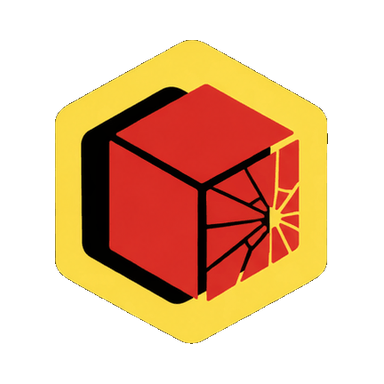
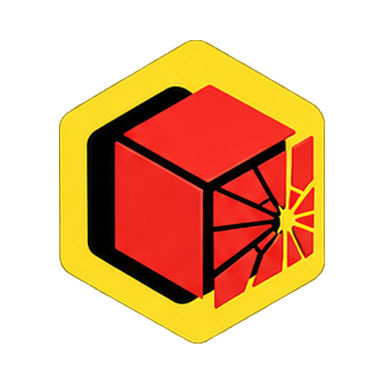
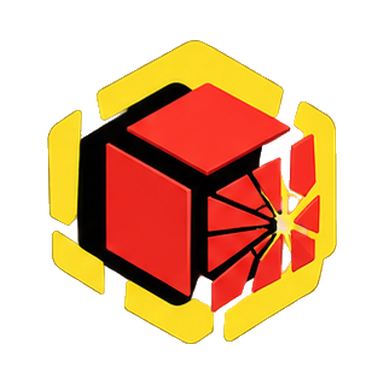






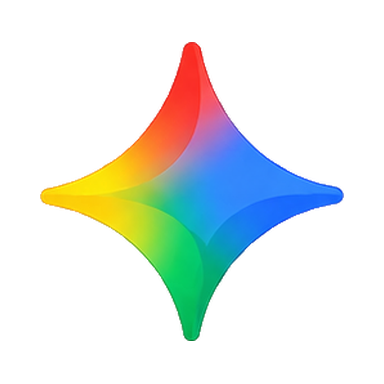
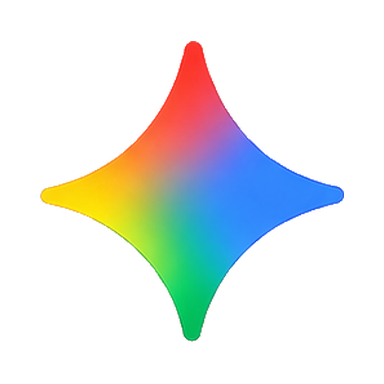
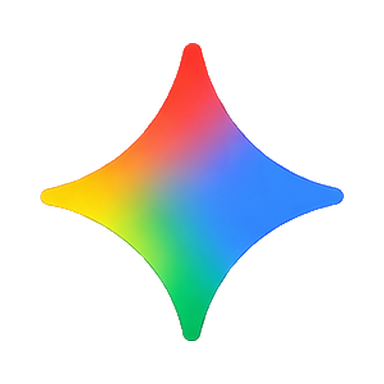

These are the in-between drawings. Read left to right, top to bottom. Click any pose to inspect it, or use the slider to move through the whole transformation.
This cube-to-star example plays forward and back, with endpoint holds. The five-logo hero above uses a longer sequence of 75 frames.
The working stack
Three jobs.
A small toolkit.
- Make the images
- Your agent’s image toolGenerate the transformation poses in Codex or Gemini on desktop.
- Put it together
- Codex / Gemini desktopUse the skill to inspect the frames and assemble the loop.
- Export the files
- The workshop helperExport the GIF, WebP, still preview, and review sheet in your agent’s workspace.
I created the original examples in Codex. I also successfully tested the shared Animated GIF Workshop skill in Gemini on desktop, where it generated the artwork and assembled the finished GIF.
The helper runs in your agent’s workspace. Image generation and skill availability depend on your tool and account. Your agent can also work with a sprite sheet you provide.
02 / Make it yours
One clear action.
Five useful moves.
Start with one image and one action. These prompts give your agent the direction. You decide what feels right.
 Your actual artwork.Keep the shape. Keep the character.
Start with your actual artwork.
A logo, a little character, a paper crane. Give the agent the real image. If one image should become another, attach both. Tell it where the finished animation will appear.
Read & adapt the prompt
Use the attached artwork as the reference. Make a small looping animation for [my website / a slide / an email]. The motion is [describe one clear action]. Preserve [the flat colors, distinctive shape, internal dark areas, and transparent background]. First inspect the image, then suggest a short sequence of poses. Keep the original file unchanged.
The plan describes your artwork and a specific action. The agent has the source image, not just the name of your brand.


Same point of view.
Make the in-between frames.
Ask the image tool for a sprite sheet: several poses in one image, arranged in order. Sixteen poses is a useful starting point for one transformation. Use more poses or several sheets when the movement needs them.
Read & adapt the prompt
Create a static sprite sheet with 16 sequential poses in a 4 by 4 grid, read left to right, top to bottom. Use attached image A as the exact starting artwork and image B as the exact destination. Show [describe how the pieces change shape] through distinct intermediate poses. Keep a stable center, camera, scale, and generous gutters. Every shape and fragment must stay inside its cell. Preserve the reference style. Transparent outside the artwork. No text, numbers, or grid lines. The first pose holds A and the last settles into B.
The middle poses show the shape changing. Each cell has room around the artwork. A static sheet is the input to the animation, not the finished GIF.

All the fragments.
Cut the sheet. Check the cuts.
Your agent separates the sheet into individual PNGs. Generated grids can have uneven rows. Check the actual gaps before slicing, then review the poses on light and dark backgrounds.
Read & adapt the prompt
Use the installed skill’s assembly helper to slice this sheet. Inspect its real dimensions and gutters first. If equal divisions would clip a shape, measure the row and column boundaries or supply individual crop boxes. Keep a common canvas and consistent scale. Show me a contact sheet on light and dark backgrounds. Preserve intentional fragments, transparent holes, and black interior shapes.
No missing tips. No piece of the next row. No unexpected changes in size. Correct the crop before trying to hide the problem by shrinking the image.
A starting rhythm.
Adjust until it feels right.
Give it time to land.
Hold on the recognizable artwork, move through the transformation, and settle. Then design the return. A loop can retrace its movement or follow a new path back to the start.
Read & adapt the prompt
Assemble these inspected frames into a loop. Start with about 800 ms on the recognizable endpoints and 80 ms per moving pose, then adjust to the action. Use exact registered reference images for the held poses where possible. Plan the return and avoid accidentally doubling the first or turning frame. Export a transparent GIF, animated WebP, still PNG, and review sheet. Read the files back to verify the actual duration, size, and infinite loop setting.
Play the exported file through two full loops. Look for an abrupt join, an extra pause, or the artwork drifting around the canvas. A passing export check cannot judge the motion for you.
Make it work where it lives.
Test at the size and background you will actually use. GIF is handy, but it has limited colors and hard transparency. WebP can keep smoother edges. Save the frames and timing so the next revision is easy.
Read & adapt the prompt
Preview the export on [my page background color] at [intended display size]. Check contrast, alpha edges, framing, timing, and the loop seam. Give me a background-matched version if needed. For a horizontal lockup, put the supplied wordmark to the right, leave visible breathing room, and keep the lettering identical in every frame. Deliver the final files plus the source frames and timing manifest.
The logo is readable on its real background. The text stays still. The deliverable includes the editable source, not only the finished GIF.
A useful little variation
Move the symbol.
Leave the name alone.
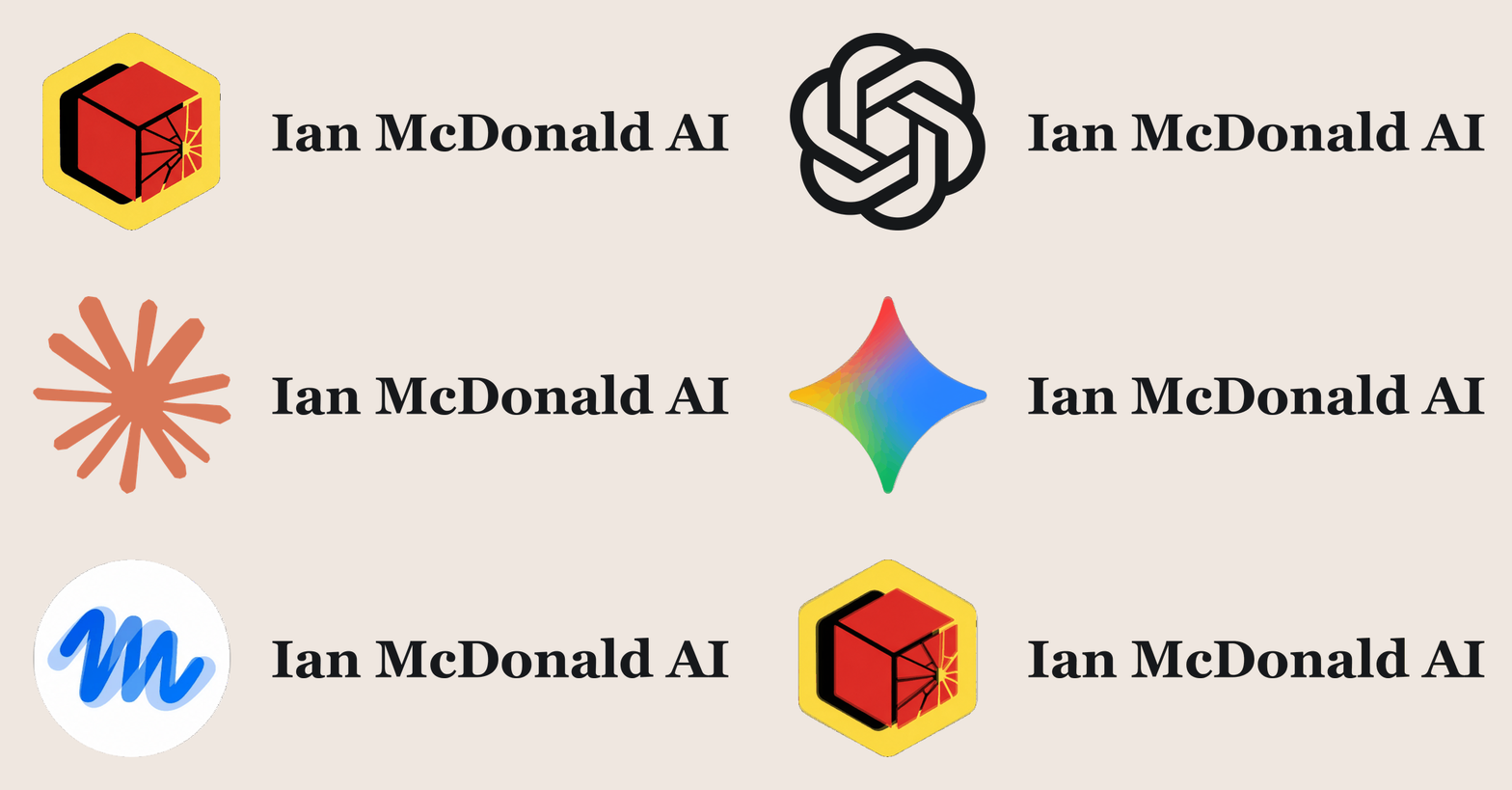
The name does not need to be redrawn with every pose. Keep the original lettering, composite it beside the animation, and give both some breathing room.
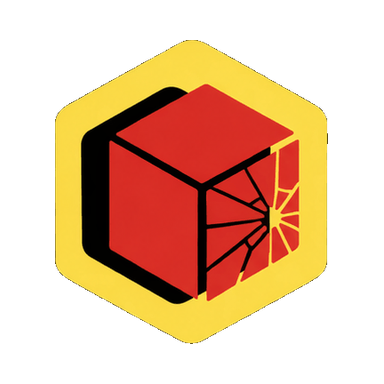
Same lettering. Every frame.
03 / Take the workbench with you
Your agent.
A better starting point.
The skill carries the whole process: generation prompts, frame inspection, timing, exports, and the things we learned by making these loops.
Download the skill ZIP Version 1.0.0 · 12 KB · No API calls in the helperUsing Gemini on desktop? Start hereLet your agent
pick it up from here.
Copy this prompt into an agent that can download files and run code. It gets the skill and asks for your artwork.
Read the install prompt
Help me create an animated GIF using Ian McDonald’s Animated GIF Workshop skill.

Download this skill ZIP:
https://raw.githubusercontent.com/disruptiv-solutions/disruptivsolutions-website/fe644f97b593ca94fe32198aa460a9d8d033925a/public/skills/animated-gif-workshop-1.0.0.zip

Verify its SHA-256 is:
6d0012359128bd8659940b075b4de44e2afed1040d28cbdab869d5d075c95c80

Inspect the archive paths, then extract its animated-gif-workshop folder into this project’s .agents/skills directory, or the skill location your agent supports. Do not replace a different existing skill without checking with me. If you do not support installed skills, keep the folder in this project and read its SKILL.md directly.

Read SKILL.md and the relevant references before starting. The included helper needs Python 3.10+ and Pillow. Use an available image-generation tool for the artwork; if you cannot generate images, give me the exact prompt and ask me for the resulting sheet. Do not silently switch to a paid API.

Help me make a short loop from my reference artwork. Use actual transformation poses, preserve the artwork’s character, inspect the extracted frames, and assemble a GIF with a clean return. Give me a WebP version, still preview, and reusable source files too. If I have not attached artwork yet, ask for it and what I want it to do.
The ZIP works on its own. No access to Ian’s files, accounts, or this conversation needed.
Use it in Gemini / desktop
Upload the skill.
Bring your artwork.
This is the Gemini-ready version of the workshop I successfully tested.
Download the Gemini skill ZIP Version 1.0.0 · 11 KB- Start a desktop chat. Open Gemini in your desktop browser and start a new chat.
- Attach the skill ZIP. Upload the Gemini ZIP you downloaded, then send the import prompt below.
- Wait for confirmation. Let Gemini confirm that it has imported and activated the skill before you start making the animation.
- Add your artwork and motion. Attach your reference image, describe one clear action, and use the creation prompt below.
- Review and keep the files. Open the finished GIF and watch two full loops. Check the artwork, timing, and return, then download the GIF, WebP, still preview, and source files.
After attaching the ZIP
Import and activate the attached Animated GIF Workshop skill for this chat. Read its instructions and confirm when it is ready. Wait for my artwork and motion request before starting.
After adding your artwork
Use the Animated GIF Workshop skill with my attached artwork. Make a short looping animation that [describe one clear action]. Generate the in-between artwork, inspect the frames, and assemble the animation. Preserve the artwork’s character and keep the original unchanged. Show me the finished animation, then provide downloadable GIF, animated WebP, still PNG, and source files.
You can also upload the ZIP through Customize → Skills → Create → Upload. Google’s skill instructions